Piroola Documentation
Welcome to the official guide for Piroola. This platform leverages advanced AI to provide professional mixing and mastering services directly in your browser. Whether you are a musician, producer, or audio engineer, Piroola streamlines the complex process of audio engineering into a few simple steps.
Our pipeline analyzes your audio stems, corrects technical issues, balances levels, applies creative processing, and delivers a release-ready master. This guide covers everything from uploading your first track to understanding the detailed engineering report.
How to Use the Application
1. Uploading Stems
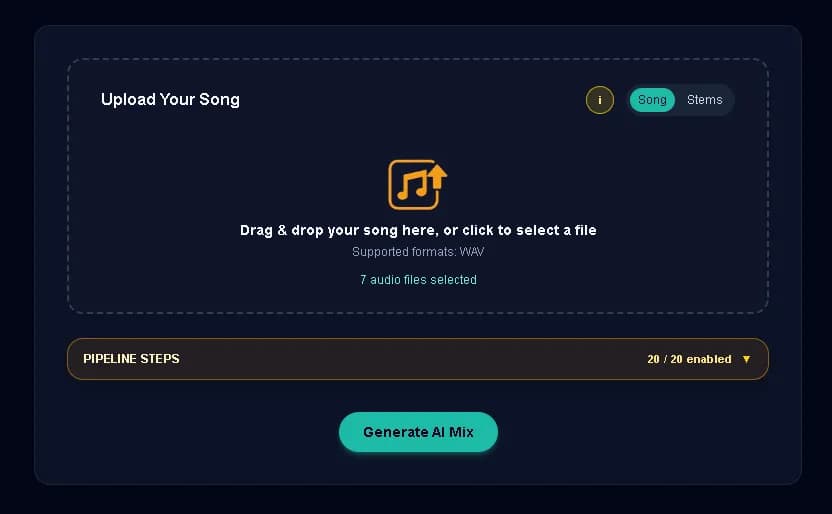
Start by dragging and dropping your audio files into the upload zone on the home page. We accept common audio formats like WAV, AIFF, and MP3. For best results, use high-quality WAV files (24-bit, 44.1kHz or higher).
Pipeline Stages (Deep Dive)
The Piroola pipeline consists of 12 sequential stages (S0-S11). Each stage addresses a specific aspect of audio engineering.
Key Features
Smart Analysis
Detects key, tempo, instrument types, and technical flaws like DC offset or phase issues automatically.
Auto-Mixing
Balances levels, applies EQ, compression, and spatial effects to create a cohesive mix.
AI Mastering
Delivers a loud, competitive master that meets commercial loudness standards (LUFS) and True Peak limits.
Detailed Reports
Provides a comprehensive engineering report detailing every decision made by the AI, from EQ curves to compressor settings.
FAQ & Troubleshooting
01My mix sounds distorted. What happened?
Check your input files. If the stems are already clipped (distorted) before upload, the AI cannot fix them. Also, ensure you haven't assigned a 'Drum' profile to a vocal track, as this can cause aggressive compression.
02The process failed at Stage S1.
This usually means the input files were corrupted or in an unsupported format. Try re-exporting your stems as standard WAV files.
03Can I use the mastered file for streaming?
Yes! Our S9 and S10 stages are calibrated to standard streaming loudness targets (approx -14 LUFS integrated, -1dB True Peak).
